Announcements:

I am currently writing at Computelogy.com actively and that's why i sort of abandoned my own tech blog. Since i am too busy to be taking care of both sides, i guess this blog will go into hibernation for a very very long time. Regrettable, but then it's hard to come up with new posts & stuffs.

So once again, i am now writing actively at Computelogy. Feel free to visit there and enjoy our latest articles and posts!

March 29, 2009

NETGATE Spy Emergency 2009


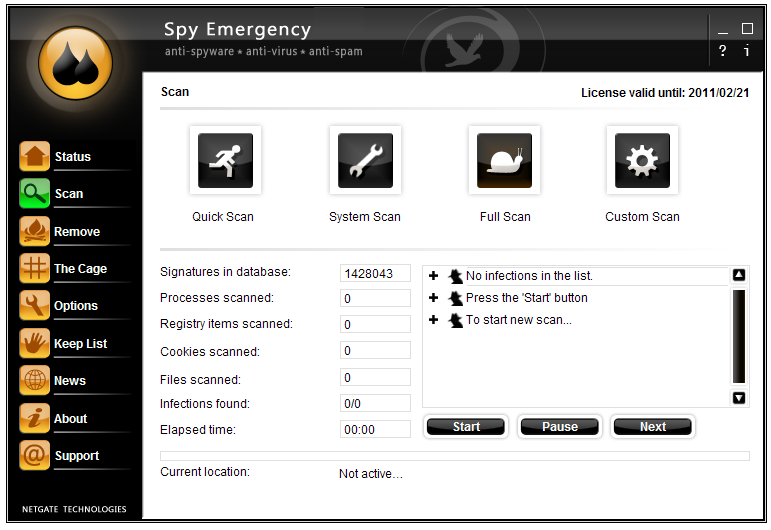
Recently there has been a wave of updates in some software. One of them is NETGATE technologies' security software, Spy Emergency. Spy Emergency 2008 is a very nice security add-on for your PC and for their newly released 2009 edition, they went on some minor upgrades to further polish it into a better software.

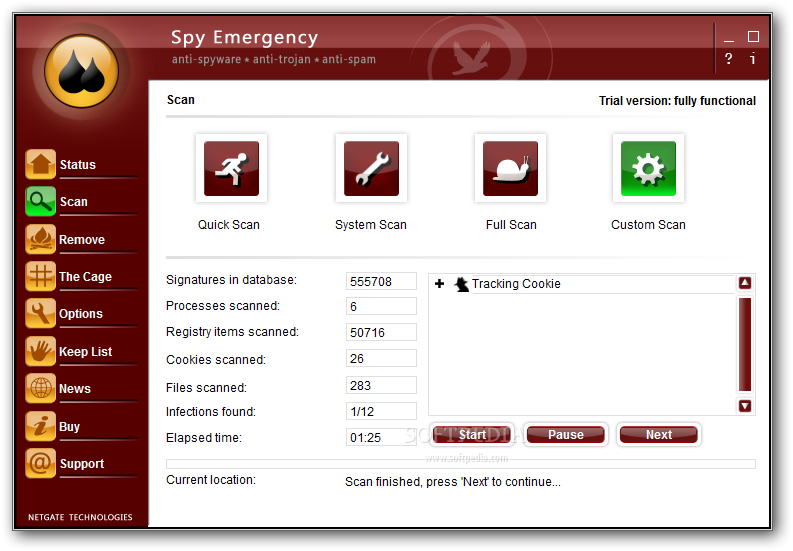
One of the most noticable change users can spot is its user interface. It wasn't a surprise that NETGATE has been changing its software's user interface with every major releases, but then change is good: the GUI still looks pretty impressive.


The second thing is that the 2009 edition has a better memory management compared to previous releases. The program now splits processing modules into two separate processes instead of one and thus, its responsiveness has increased dramatically. Although the 2009 edition still bears the 2008 version's weakness of using up a very high CPU cycle during the scanning process, but comparing it to the 2008 edition, responsiveness is still, a big plus.

Of course, there are some things which Spy Emergency still retains. Its scanning engines and update module have not been change so users can expect the same update frequencies and capabilities, apart from the scanning engines and usability experienced in the 2008 version.

I have high regards of this security software and in my opinion, it is a much better paid-for scanner than other scanners such as Ad-Aware Pro and Spyware Doctor.
Read more >>

February 26, 2009

Auslogics Registry Cleaner Free


As time passes, an area where your PC store configuration information, namely the registry, will get cluttered and less organized. This is when you'll need the assistance of a maintenance tool called a registry cleaner. However, registry cleaners can be the making or the breaking of a PC's functionability, so choosing the right registry cleaner is an important thing when you are thinking of mantaining your PC at peak performance.

A few days ago Auslogics put out a new product called Auslogics Registry Cleaner. It is a freeware like its Disk Defragmenter counterpart and both are actually very useful products from Auslogics.

It has a very simple interface, mainly focusing on the product description and step-by-step instructions on how to use it. There are two options for registry scanning; a quick registry scan which the results can be safely deleted, and an advanced registry scan which will require user expertise in removing certain registry entries. There is also a recovery option for recovering a PC's registry in the case of a failed cleaning process. Scans are fast and results are shown very clearly in the windows without being too complicated. The application itself is very lightweight, and it will not bog the computer down when it is running a scan or a clean.

The first scene: Auslogics Registry Cleaner provides you the option of doing a quick or advanced scan.

The second scene: Auslogics will run a scan, prompting you with the scan time, amount of registry items scanned and the amount of errors found along the process.

The third scene: Auslogics will systematically list down the errors found according to sections in the registry.

After the cleaning, Auslogics will show a performance chart indicating how much your system has likely improved.

Auslogics Registry Cleaner works with Windows 2000, Windows XP, Windows Server 2003 and 2008, Windows Vista and Windows 7. It works with both 32-bit and 64-bit systems and is dual-core supported. It requires a minimum of 32MB disk space.

To download the free Auslogics Registry Cleaner now, click this link.
Read more >>

Color Chart for HTML-based Color Editing

Web designers and programmers give colors to their web-based application and web pages by editing numeric and alphabetical codes called "color codes" among a set of HTML codes which builds up a website. Different colors have different hex codes which literally allows thousands of colors to be edited into a website. Of course, it is impossible for us to memorize all of the color codes. Therefore, we shall enlist the aid of a certain chart called a color chart.

Color charts basically contain most of the popular colors and the hex code tagged with it. To insert a color into a web-page, web designers first look at the color charts and determine which colors they wanted and from there, they sort out the color hex code and edit it into their HTML scripts.

C0lor Charts with their respective codes (Click for larger image)

Even if you are not a web designer, basic color editing is still considerably useful, for example, editing the colors in a blog. I build up this blog's color by editing the layout's color, and there's when editing the color hex code comes into play!
Read more >>

February 13, 2009

Splash Screen for Mozilla Firefox

Apart from browser security, Firefox is famous for its highly configurable and customizable design through installing add-ons. Among those customization features, Mozilla came up with the idea of adding splash screen to its trademark product, Firefox. While not being particularly useful, it is nevertheless, fun and a brilliant attempt of spicing up Firefox.

Splash! is a firefox add-on which polishes up a Firefox by showing a splash screen during its startup. To use Splash!, user must go to Firefox's add-on site and download it to their Firefox. After restarting Firefox, you can see by default, a Firefox name and logo with a white background loading up before the Firefox window takes up the screen.

The default Firefox splash screen

Splash! is also highly configurable. Users can change the startup message on the splash screen, create or apply custon image for the splash screen and some other minor tweaks such as adding custom sounds. Applying this add-on is encouragable not just because Firefox's startup is slightly longer than other browsers (maybe we need a little entertainment lol), it is a great add-on for both Firefox lovers and GUI enthusiasts.

A custom Firefox splash screen

Splash! works with Firefox 1.5 & above.

Download Splash! for Mozilla Firefox here.
Read more >>

Lesser-Known Tweaks for Speeding Up PCs running Vista


A majority of us out there genuinely believe that Vista is a total disaster. Yes, the world heard of various ways in speeding up Vista and yet Vista's performance doesn't really improve much. I used to be one of those who complain about Vista's poor performance but hey, i'm using Vista now and it's so much faster than most of the relatives and pals around me who use Vista as well!

Of course, your Vista will definitely kill you with its slowness if you didn't update it to the latest SP1 with the latest windows update file, or if you didn't defrag your cluttered hard drive at least once a month. But what if you did? What should you do after applying all the famous tips and tweaks out there? Before you continue your lament of Vista's poor performance, here's some lesser-known tips you should check out first!


1. Turn off Scheduling for Windows Defragment

This tweak is best for users with an underpowered machine such as my Compaq V3000. I found that the Windows Defragment has an option of scheduling a specific time every month for auto-defragmentation. Sounds nice, isn't it?

Problem is, we all know that the built in Windows Defragmenter are second class in performance ever since the old days of Windows 95. There are so many free and better defragmenters out there for your use.


By turning off the auto-defragment option, we can save the trouble of Vista slowing down for defragmentation and interferes with your working process by allocating more resources to background services. Of course, if you are the kind who loves the idea of automatic, then just leave this tweak alone and get on with your computering life. There's an option for setting your schedule anyway...;)


2. Enable Advanced Performance in Vista's Disk Drive

Not many people knew of this tweak, and yet it is one of the most effective tweaks out there. By enabling this option, the hard drive disk will perform at allegedly half times more than the normal operating speed. It's a risky tweak for sure (notice the warning shown on the image below), but then its worth a sacrifice when speed and responsiveness is the main concern.


Right-click on My Computer and select Properties. On the Windows Vista Properties page, select Device Manager on the top left corner of the window. Search for an entry called Disk Drives and click on the hard drive that manages your Windows Vista. Switch to the 'Policies' tab and check the empty box which reads 'Enable Advanced Performance'.


3. Configure Vista's Auto Tuning Level


Vista has improved over the network management issues compared to XP but gosh, its networking speed is a real turnoff! Worry not though, for setting the tcp global auto tuning level can solve most of that annoyance.

Open the 'Run' on your start menu, run command prompt (cmd) in administrative mode and type in the following command key:

netsh interface tcp set global autotuninglevel=disabled

A message 'OK' will display, meaning that the autotuning feature has been configured successfully.


To return the autotuning setting back to default, type in the following:

netsh interface tcp set global autotuninglevel=normal

This useful little tweak has successfully solve problems such as poor data transfer rate in Internet Explorer and the inability of signing in to Windows Live Messenger.


4. Configure Vista's Boot Timeout Options


Microsoft has promised better startup time for Vista, but that promise sort of excluded those with underpowered machines. My brother's high-end desktop boots Vista into functionality under less than a minute, while my underpowered lappy constantly took approximately one and a half minute to load itself into functional stages. I ease the booting trouble by configuring Vista's Boot Options.


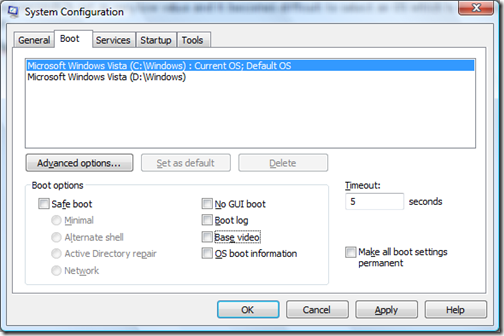
Boot Timeout Option is accessible by running msconfig with 'Run' via Start Menu. Default timeout is 30 seconds and by decreasing the amount to just 3 seconds, my boot time decrease from more than one and a half minutes to just a few seconds over a minute! It's still not as fast as my brother's high end desktop, but hey, who could imagine that a lappy with mediocre performance can actually come close to within 10 seconds of a high-end machine?


5. Disable Visualizations in Windows Media Player 11


Vista is known to consume more CPU processes and RAM than previous Windows, so the best way for a user with older processors and limited amount of RAM onboard is to run less memory intensive programs simultaneously.


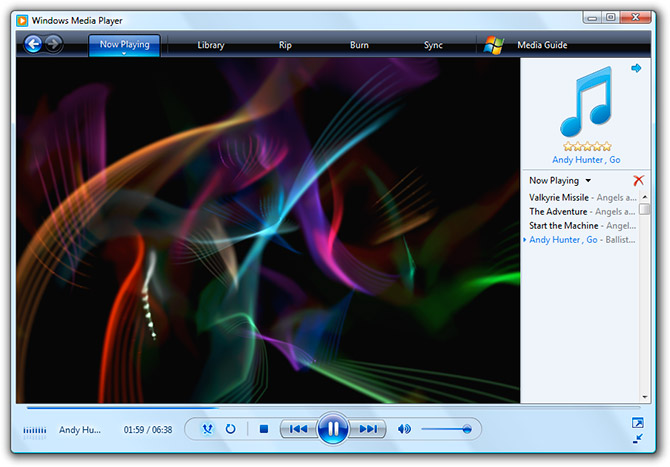
While Vista's Windows Media Player is not much of a memory hog, we can actually improve that performance...and the way to do it is to set the visualization option to 'No Visualization". Access the 'Now Playing' tab, right-click on the screen and choose 'No Visualization'. After setting the tweak, i realized that the CPU resources and memory consumption for Media Player decrease slightly and surprisingly become more constant. The responsiveness of Windows Media Player itself also becomes better!


6. Configure your Power Options

By default, Windows Vista's power option is configured to balanced mode, meaning that the machinary achieves a balance between high-end performance and power-saving duty. But then who cares about saving power if they are using a desktop and when Vista feels so slow?

Access 'Power Options' via your Control Panel and switch the power option from 'Balanced' to 'High Performance'. If you are running Vista on an underpowered machine, i guarantee that you will feel the difference in Vista's responsiveness immediately!
Read more >>

February 10, 2009

Evaluating Systweak's Advanced System Protector

Security software market nowadays are so competitive that every single company or corporation will be seizing chances of developing software related to security and privacy. What i meant here is apart from those business entities which majors at security software such as ESET and Avast!, some other companies with less affiliation with developing security software also join in the fray, for example, PC maintenance company Iolo. I can see why security software are so lucrative because one of the major essentials of a computer is also its security software; no computers running Microsoft Windows can go far without the protection of at least a security software.

Systweak also joins in the security software competition when it started offering Systweak Antispyware 2008, the company's first major security software release. However, after some months released, I think that Systweak sort of discontinued the support for Antispyware 2008 (the program could no longer update according to some users) and moved on to release Systweak Advanced System Protector.

Systweak Antispyware 2008, which i believe has been discontinued

Advanced System Protector is a security software which is available free for download. For free, users can scan and remove malwares but for real-time protection, users will have to upgrade to the pro version which of course, requires some credit off you.

The Advanced System Protector Startup Splash Screen

I previously didn't know of Advanced System Protector's release date, and i consider myself lucky as to have come across Advanced System Protector on its day of release which is some time around late October or early November. The software was very much hyped over due to Systweak itself, which is a Microsoft Gold Certified Partner and that CNET was heavily praising and promoting this software. Figuring that i might just have a shot at it, I grabbed a copy and have it installed on my Vista.


Unlike most of my personal software tests, on which i can immediately decide whether it is to my liking or not, Advanced System Protector gave me quite some hard time deciding. I set my benchmark for evaluating this software at a time frame of two months into installing the software.


The Good:

=================

1. User Interface and Designs
--------------------------------------------

The Main Menu of Advanced System Protector

One thing that caught my attention for the first few seconds into launching the software is its well-designed user interface and beautiful designs. I am a GUI enthusiast and was extremely satisfied with the way Systweak put together its user interface in terms of its design, color combination and positionings. Except for the Gold-Cetified Partner badge which is all over the place (on its splash screen, main menu and all that...) which is all for marketing purposes, i had no complaints whatsoever. One month into using Advanced System Protector, i daresay that the interface still wows me everytime i launch the application.

2. FREE Scanning and Cleaning
----------------------------------------------


What's always great for a security software? Free scan and clean! ...and thankfully Advanced System Protector does just that. Although the free edition doesn't have real-time guard, users can still use the software for scan and clean, which may be considerably sufficient. Personally, i owned a real-time protection in the form of an internet security, so where's the need for more real-time protection which can waste my bandwidth and system resources?

3. Stability
--------------------

One of the important aspects of a software is stability, and Advanced System Protector have just that. After countless time using the software, it never crash on me during startups or scans or removals, no annoying bugs and most importantly, it does not cause incompatibilities with any of my present softwares and hardwares. I can pull out Advanced System Protector and do a scan anytime i like, regardless of what i am doing on my computer. Some programs such as Norton failed miserably on this aspect, and i credit Systweak for doing a fantastic development job.


The Bad:

============

1. Signature Updates
---------------------------------

It is arguably one of the slower ones in terms of updating. MalwareBytes and SUPERAntispyware all does a better job than Advanced System Protector. Occasionally the update server encounters an error and refuses to distribute updates. Another worrisome thing is the frequency of its updates. Sometimes, Advanced System Protector offers updates at an interval of a few days; a length of time which no longer works for security offerings. Truly capable security software such as Kaspersky and Bitdefender dish out updates daily, sometimes even numbers of times a day. Even smaller antispywares and antimalwares such as MalwareBytes update their signature database everyday! Judging from these points, i can hardly consider Advanced System Protector one of the best antimalwares on my PC.

The most disappointing message ever... especially when the database is more than 5 days old...

2. Poor Descriptions of Malwares
------------------------------------------

On the first scan Advanced System Protector did on my computer, it caught more than 60 "malwares". I removed it, and it kept coming back during subsequent scans, no matter how hard i update its signature database. It was only after doing some serious homework during the Christmas season, I was forced to conclude that Advanced System Protector has branded a bunch of Internet Explorer vulnerabilities as rogue antispyware. Because of their poor description, i've wasted my time doing various scans with various security software, finding nothing and after i removed some vulnerabilities on my PC, i do a scan and well, Advanced System Protector detects nothing anymore!

I don't know whether to be happy or to be critical though. To be honest, confusing between a vulnerability and a malware is also DOWNRIGHT MISLEADING!!! Better not brand anything if you're not sure of what it is! I would have gladly eliminate all my vulnerabilities at once if you would just tell me that the 60-plus "malwares" it caught are vulnerabilities!


The Fixed:


1. False Positives
--------------------------

Among the 60+ malwares it caught during my first ever scan, a couple of them are just false positives. Like the vulnerabilities, i removed it and it kept coming back, which gets annoying after a while. I scanned with many security suites and found nothing, which prompts me to decide that they were some false postives. Luckily, just before i started working on this post during late January, Advanced System Protector issued an update which eliminates the false positives. I am pretty sure of it, for none of my security software caught anything before the update (even if they do, Advanced System Protector would've still "caught" the two false positives). While there's nothing to be joyful in particular, at least I am satisfied to know that Systweak is doing some homework on their software, which proves that they are serious about their offerings.


Conclusion:


Advanced System Protector is Systweak's second security offering and after all the hype, i am adament that Systweak still has some homework to do on providing truly decent security solutions. It is nevertheless, a very good attempt at breaking the market. With certified abbilities at making consumer software, trying out the security market isn't too bad a decision. Overall, Advanced System Protector Personal is recommendable if you're just asking for more protection even after you had other major security solutions. However, users with different computing level, different ways of usage and different computering knowledge will have very diverse opinion towards the product.
Read more >>

February 9, 2009

Download remix versions of Safri Duo's Baya-Baya!!!


It's not the first time i've posted stuffs related to music on here, but today i'd like to share some musical stuffs which are available for download...today, i'm disclosing the direct link to downloading 10 different versions of Safri Duo's Baya-Baya!

In case you didn't know, Safri Duo is a percussion duo from Denmark whom achieved worldwide success with the famous 2001 hit, Played-Alive aka the Bongo Song. They used to work on classical musics, but then shifted their genre towards electronica and percussions approaching the new millenium, contributed towards the success of their second and third album, Episode II and 3.0 . On Mid-November 2008, they released their latest album, Origins which encompasses new materials of new genres. Safri Duo is currently the best-selling Danish Pop group after Aqua.

Here are a list of the 10 versions of high-quality Baya-Baya available for download now:

1. Baya-Baya (Album Version) at 7.45 MB

2. Baya-Baya (ATFC's Dawn Vocal Mix) at 11.4 MB

3. Baya-Baya (ATFC's Dub at Dusk Mix) at 10.94 MB

4. Baya-Baya (Beatchuggers Mix) at 9.1 MB

5. Baya-Baya (Filur Safitch Drum Mix) at 11.22 MB

6. Baya-Baya (Future Breeze Radio Edit) at 4.97 MB

7. Baya-Baya (Future Breeze Remix) at 12.16 MB

8. Baya-Baya (Hyperion Remix) at 6.15 MB

9. Baya-Baya (Radio Edit) at 4.33 MB

10. Baya-Baya (Spanish Fly Club Mix) at 10.62 MB

All files are in .mp3 format and all have excellent sound quality; truly a precious download. Personally i've been waiting for years to get a copy of the Beatchuggers Mix since i heard it on a radio broadcast. Credits to pelaotatan for publicly sharing the remixes with us!

So what are you waiting for? Hurry up and grab any version of Baya Baya now!!!
Read more >>

February 8, 2009

Software of the Week: AeroSnap & AeroShake


I love Windows 7 since the day i tested it and apart from its improved performance over Vista, Windows 7 does have lots of useful goodies. One of them is the new function of snapping an open window's size to take up half the screen by moving either to the left edge or the right edge of the computer screen. By dragging a window to the top, it snaps into full screen mode! It is practically useful especially when you are trying to copy files from one location to another or when you are trying to compare between two folders side by side.

Another feature is the ability to minimize all open windows back to the taskbar by shaking the windows you wanted to remain open. This is very useful as well, especially when your desktop are messed up by many open windows and you won't waste time by minimizing each and every open windows down.

The good news is we don't have to wait until the official release of Windows Se7en or install the beta to experience this new feature!

1. AeroSnap


AeroSnap is a desktop enhancement software designed to totally emulate that particular feature of Windows Se7en. It is still on beta, but then the software is light, stable and most importantly, it works as advertised!

From my private testing, it consumes little memory and almost no CPU resources on idle. It can be configured to start up together with Windows, is capable of being launched via hotkeys and it sits quietly in your system tray. In short, it is something i highly recommend.

To download AeroSnap beta, click on this link.

You can also visit the English version of its official website now.

2. Aeroshake

AeroShake is designed to emulate the Windows 7 feature of minimizing all windows except the one you are shaking. It is a final release, and like AeroSnap, is pretty lightweight, stable and highly configurable.

However, it does not work just as well as Windows Se7en's feature. I have to give the windows i am clicking on a really good hard shake from corner to corner before all the open windows starts minimizing. Even with that, i still believe AeroShake is decent enough for daily use, if you need it, of course.

To download AeroShake, click this link.
Read more >>

Review Digital Plexus

I do not know how well this blog is doing unless there are feedbacks. Please do leave a review or two with us on how you think about Digital Plexus, its authors or the qualities of the posts. Good and bad comments are all welcomed, but please avoid posting rude/obscene comments that are not helpful to any of us working on this blog:

Disclaimer:

This blog is dedicated for the benefits of those who seeks experiences, knowledge or information in the computer, IT news, technology and software & hardware area. Digital Plexus cannot control how readers use the information, including any fraudulent conducts, illegal activities or deeds as regard by the law. Therefore, Digital Plexus & its authors shall not be liable to any damages caused by readers who misuse the information provided.

Digital Plexus utilizes information from many sources, including personal experiences of authors. Digital Plexus will never claim credits or ownership rights regarding the information it used in the blog, except for the raw articles posted on the blog - those are original materials written by the authors of Digital Plexus itself after the compilation of various information and/or experiences.

Followers

  © Blogger templates 'Neuronic' by Ourblogtemplates.com 2008

Back to TOP